
The Complete Guide to Projects, Custom GPTs, and Claude Skills
When to use each and how to set them up

You open ChatGPT. Type a prompt. Get an answer. Close the tab.
Later, a related question. Open it back up. Retype the same context.
The cycle continues.
My fingers used to hurt from how much context I would type and retype. My biggest bottleneck wasn’t the AI: It was my own typing speed. Switching over to voice dictation helped (thank you, Wispr Flow), but then I was relying on tea to soothe my throat from how many words I was speaking.
If this sounds familiar, you’re not alone—and you’re leaving value on the table. Just like I was. The giveaway is repetition: the same context, the same instructions, the same setup, over and over again.
When prompt engineering first entered the spotlight, we all started beefing up the context we gave to ChatGPT. And while this dramatically improves the quality of your output, it also takes a lot of time. What we really want is to assign AI a task and have it get it. That’s what I’m here to help you with today.
By taking advantage of the memory and tools that ChatGPT and Claude have to store context for you, you can finally break the cycle.
Customize Your AI
Let’s start at the top. Both Claude and ChatGPT let you set custom instructions that apply to every conversation—across every project and chat. Some examples (Claude even pre-populates a few suggestions):
Provide succinct and direct answers
If my task isn’t clear, always ask clarifying questions instead of filling in the gaps yourself
Always provide answers in digestible and structured formats
Never use the “Not X, But Y” negation framing (or any other AI tropes)
Anything that doesn’t apply to every single one of your tasks does not belong here. For example, if I added in the second option above, I’d be annoyed if I asked a quick “Google” question at the supermarket—what aisle is the butter in?—and got back a laundry list of questions.
You can play around with this and always come back and change the instructions later. One note: stronger models (like GPT-5.2 Thinking or Claude Opus 4.5) follow these instructions more reliably than their lighter counterparts.
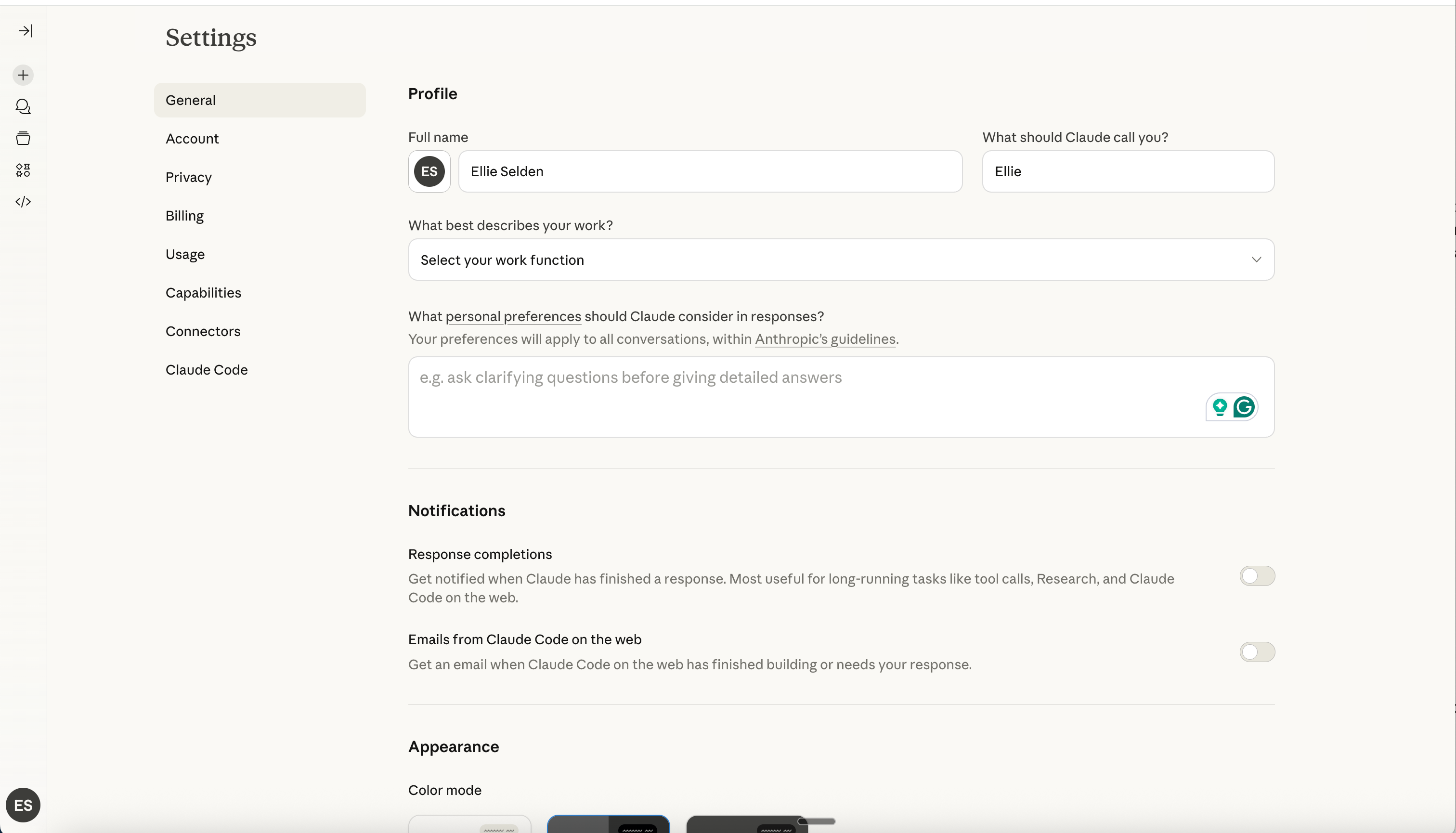
To add custom instructions in Claude:
Click on your name and profile icon in the bottom left corner of your screen
Click on “Settings”
Add in your personal preferences and more information about you
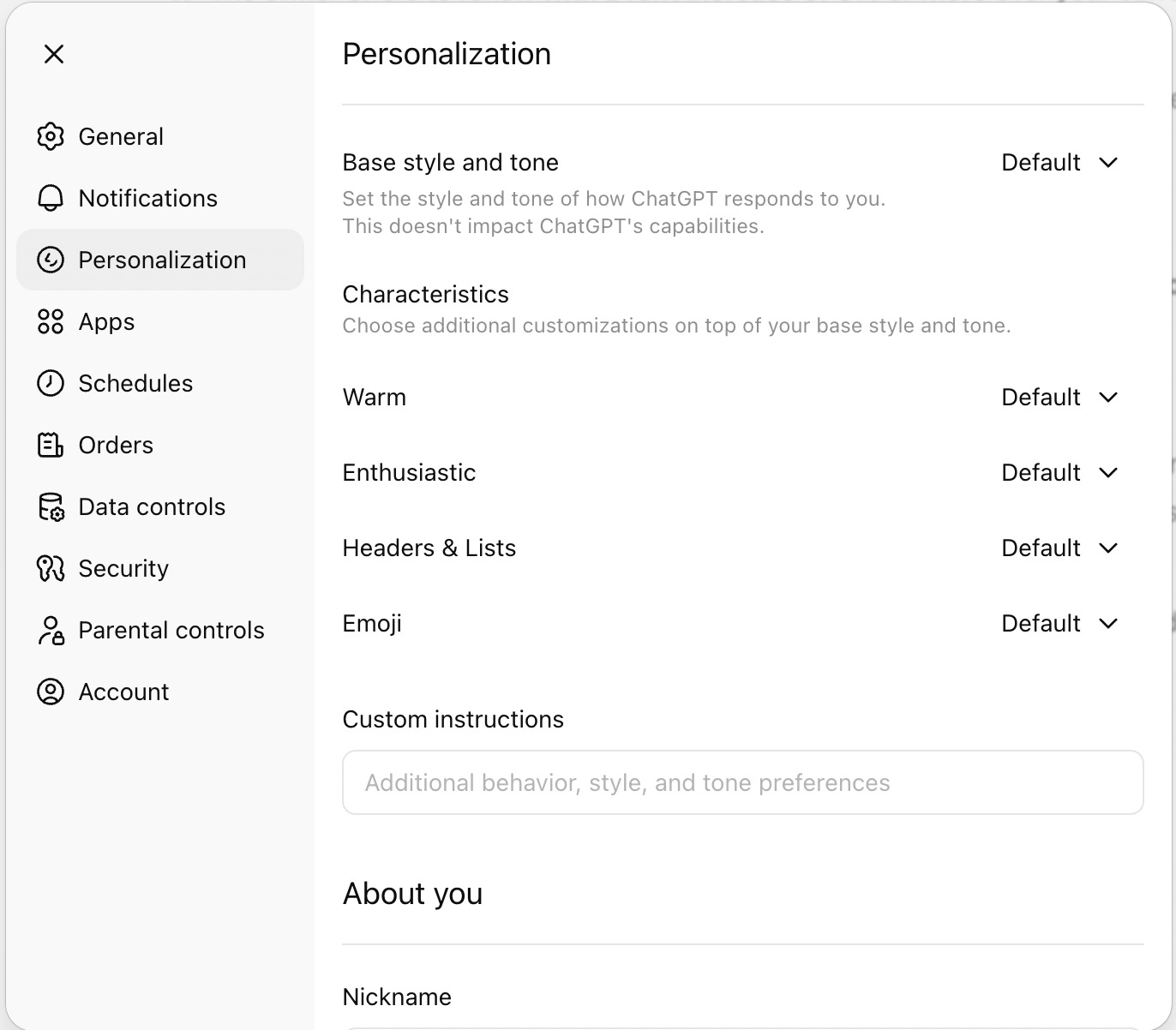
To add custom instructions in ChatGPT:
Click on your name and profile icon in the bottom left corner of your screen
Click on “Personalization”
Add in custom instructions and more information about you
Projects, Custom GPTs, and Skills
Custom instructions apply everywhere. But what if you need something more targeted—specific context or workflows for specific tasks? That’s where Projects, Custom GPTs, and Skills come in.
The tools across ChatGPT and Claude:
ChatGPT
Custom GPTs (paid only)
Projects (free)
Claude
Skills (paid only)
Projects (free)
Projects
Both ChatGPT and Claude have projects, and good news: They operate similarly and are available on free tiers. Projects are self-contained workspaces with their own instructions, context, and knowledge bases. They’re helpful when you’re tackling an ongoing body of work across multiple chats.
For example, I have a Claude project for “Ellie’s Toolbox.” Whether I’m brainstorming ideas, editing drafts, or researching new features, I work in this project. I never have to waste time in each chat re-explaining what it is or how I write—it already knows from the context I’ve uploaded.
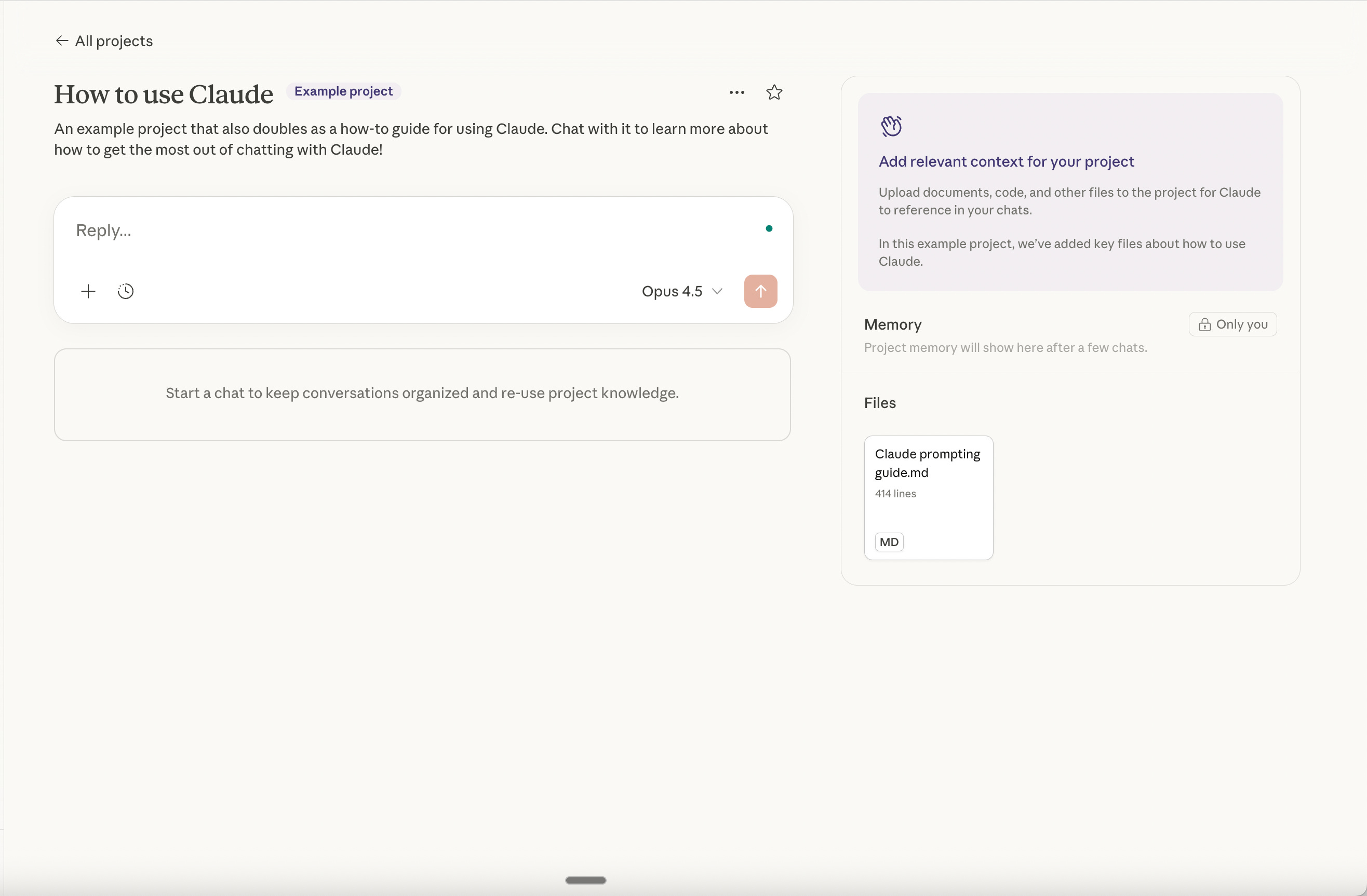
Claude comes with a “How to use Claude” project (shown below). In this project, you can ask questions like:
How do I write the most effective project context?
Is my [insert project idea] a strong use case for a project?
Very meta to use a project to help you understand a project, I know. You can also use this to understand other aspects of Claude—it’s a very helpful feature.
How to Create Effective Project Context
Good project context is what lets you stop repeating yourself. Let AI do the heavy lifting here. Create a new chat in your project folder and ask it:
Interview me on [insert project here] until you have a comprehensive and detailed understanding to write context for my project instructions.
Once the interview is done:
If you are using ChatGPT, ask it to turn all of the context into project instructions or upload it as a document into the knowledge base.
If you are using Claude, ask it to turn all of the context into a context file. This will create an md file that you can download and then upload as context to your project.
From then on, every new chat in that project will start fully equipped with that context. Remember, you can always update this. When new context emerges from a conversation, ask the AI to turn what it learned into additional context. Then upload that to your knowledge base or project instructions.
Differences Between Claude and ChatGPT Projects
There are two key differences between Claude and ChatGPT’s projects:
Memory: Claude regenerates project memory every evening based on your chats. You can click on memory to see what it stores. In ChatGPT, projects mainly pull from the uploaded instructions and knowledge rather than learning from your chats.
Sharing: I’m a Claude fan, but one feature pulls me back to ChatGPT: You can share projects on individual plans so others can access the same setup and chats.
For example, I’m planning a trip with my family this summer. When we first began planning, I immediately shared a project folder with them, with all of our parameters and preferences. Now they can see the research I’ve done on where I think we should go, take over and “branch” my chat to start from where I left off, and create their own chats equipped with the context I’ve uploaded—all without messing up my original thread. No more “what about Paris?” texts from my sister—I don’t have to remind her for the seventh time that my mom refuses to spend the summer in a city without air conditioning.
Claude does support sharing on Team and Enterprise accounts.
You can find more information on Claude’s projects from Anthropic here.
Custom GPTs vs Skills
Custom GPTs and Skills handle specialized behaviors and workflows. They’re the ChatGPT and Claude equivalents of each other, but they work a bit differently.
One key difference upfront: Custom GPTs are much easier to share. You can send anyone a link. To share a Skill, you have to download the file and send it manually, and the recipient has to upload it to their own Claude account. (Skills can be shared more easily within an organization on Team or Enterprise accounts.)
That’s why tools like the New Year’s Resolution Coach and Thought Partner from earlier posts were GPTs, not Skills—even though they could have been either. I’ll keep sharing GPTs here for that reason. And even if you’re on a free account, you can still use GPTs others have shared.
Whenever you have a task that you do over and over again, that’s an opportunity for a Custom GPT or Skill. Strong examples:
A weekly news digest personalized to your preferences
Turning meeting notes into a specific output structure
Conducting the same rapid analysis you run on ten companies per week
Custom GPTs and Skills can also handle specialized behaviors—like always pushing back on your thinking or writing in a specific tone. Skills have an edge here: you can call them anywhere in Claude, not just in a dedicated chat. Custom GPTs don’t retain memory across chats—they only know what you’ve put in the instructions and uploaded knowledge.
The Thought Partner GPT I shared a few weeks ago would actually work better as a Skill—or even seven Skills, one for each mode. But I made it a GPT so I could share it with you. If it were a Skill, I could call it anywhere: inside my Ellie’s Toolbox project, or in a random chat about whether we’re in an AI bubble.
Chaining GPTs Together
Here’s a useful trick: If you’re in a ChatGPT thread and want to pull in one of your Custom GPTs, just type “@” and the GPT’s name. This lets you chain GPTs together for multi-step workflows.
Say you have one GPT that searches for the top company that fundraised in the last week and fits your firm’s investment thesis, and another that runs a rapid analysis on that company. You could start with “@Company Finder” and tell it to “Pull this week’s company,” then type “@Rapid Scan” and tell it to “Run the rapid scan on the company above.” This is helpful as you step into more complicated tasks.
The more specific your use case, the better the GPT or Skill will perform. It’s better to have an army of them, each representing one specific workflow or mode. When you provide specific and clear instructions, you set your tool up for success.
How to Create a Custom GPT
On the left-hand panel of ChatGPT, select “Explore GPTs” at the bottom of the GPT section.
In the top right corner, select “Create.”
Customize your GPT using the Create or Configure tab.
The Create tab is great for getting started. It lets you describe what you want in natural language, and then it auto-populates the fields in the “Configure” tab. You can see how it transforms what you want into prescriptive instructions for the GPT. Once you get more comfortable with GPTs, I recommend working directly from the Configure tab because it gives you more control. If you use the Create tab to make updates, it might overwrite something you wanted to keep.
The boxes to fill in on the Configure tab are:
Image: I like to have ChatGPT create a fun image for each of my GPTs
Name: Name your GPT
Description: Add a short 1-2 sentence description about what this GPT does
Instructions: What does this GPT do? How does it behave? What should it avoid doing?
Conversation starters: These are buttons the user can click on to start a thread with the GPT
Knowledge: Upload documents that your GPT can access across every chat
Recommended Model: Option to recommend a model that users should use for your GPT
Capabilities: Web Search, Canvas, and Image Generation are auto-enabled. You can choose to enable Code Interpreter & Data Analysis.
Actions: Involves API calls to let your Custom GPT operate outside of ChatGPT. I won’t be getting into this now, but you can find more information here.
The most important fields are Instructions and Knowledge. Use ChatGPT to help you write out the instructions. The field maxes out at 8,000 characters. If you exceed that, have ChatGPT condense the main instruction set and put the remaining details in a document you can upload to the knowledge base.
Refine your GPT.
Once you have all of your information in the fields, you can use the “Preview” section on the right to test your GPT. Run a few conversations and make edits to the instructions based on how it’s performing. If it’s not following an instruction, ask ChatGPT for help! Provide it with the current instructions, explain what’s going wrong, and have it suggest fixes. Keep going through this process until you are done.
Publish your GPT.
Create and share your GPT with just yourself, anyone with the link, or the GPT store. You can always go back and edit any part of the GPT, including the sharing permissions.
Use your GPT.
To use your GPT, you can find it in the left-hand panel or call it using the “@” in the chat.
Making a Skill is easier than a Custom GPT—you never have to leave the chat.
How to Create a Skill
Go to Settings in Claude (by clicking on your user icon in the bottom left corner).
Click on “Capabilities” in the Settings Menu.
Scroll down to Skills. This is where you will see any Skills you have created and example skills that Claude has created.
Make sure “skill-creator” is toggled on.
Return to the chat you want to use to create a Skill. This could be a new chat, a chat in a project, or an old chat.
Tell Claude to use the skill creator to make a Skill for you and describe what you want it to do. Make sure you are clear and detailed.
Once Claude is done, select “Copy to your skills.” If that doesn’t work, download the file, navigate back to the Skills section in Settings, click “+”, and upload it.
To call it into action, tell Claude to use that Skill in a prompt. For example, if you created a Data Analysis Skill, you would upload your data and ask Claude to “Use the data analysis skill for this data.”
You can find more information on Claude’s skills from Anthropic here:
One more tip: if you’re in a chat and realize you just did something worth saving, tell the AI to interview you to fill in any gaps, then convert the workflow into a Custom GPT instruction set or a Skill.
Let’s Play a Game
Now let’s put this into practice. I’ll lay out a scenario—see if you can figure out which tool fits best, or just read through my take.
Scenario #1: You are an investment banking analyst who shares a weekly market update with your group. You run through a standard workflow every week. Which tool should you use to streamline your process?
Answer: Skill or Custom GPT. A repeatable workflow with defined inputs and outputs is the sweet spot for either tool. If your memo has multiple complex steps, you could chain Skills or GPTs together: one for research, one for synthesis, one for formatting the final output.
Scenario #2: You are a consultant starting a new case, and your manager requests that all meeting notes follow a specific structure.
Answer: Skill inside a Project—Claude for the win. Set up a Project for the new case with all your client context. Then create a Skill for your manager’s meeting notes format. When you run the Skill inside the Project, it has access to all the context, which helps fill in the gaps of your meeting notes.
If you’re a ChatGPT user, you’d create the Project the same way, but use a Custom GPT for the notes format. The downside: The Custom GPT can’t access the Project context, so they run in silos.
Scenario #3: You are a Chief of Staff for a startup that just announced an acquisition. The employees at the startup have a lot of questions. How can you make it easy for them to ask questions, understand the acquisition details, and know what it means for them?
Answer: Custom GPT. Upload the acquisition announcements and details, and employees can ask questions whenever they want. In the instructions, give it the role of a patient explainer who breaks down complex information. The key here is shareability—you can send the link to the whole company.
Your Move
The next time you finish a task, pause. Did you just repeat a workflow you’ve done a dozen times? Are you building on something you’ll come back to next week?
These are the moments where a Custom GPT, Skill, or Project turns a one-off chat into a system that works for you.
This is what it means to become AI native—not just using these tools, but rewiring how you approach every task to ask: how could AI fit into this? There are infinite use cases across your workday and your free time. Start noticing the patterns. These tools let you get so much more out of ChatGPT and Claude than opening a new chat every time you have a question.
Your fingers (and your throat) will thank you.